Scan a receipt once, and it’s filed.
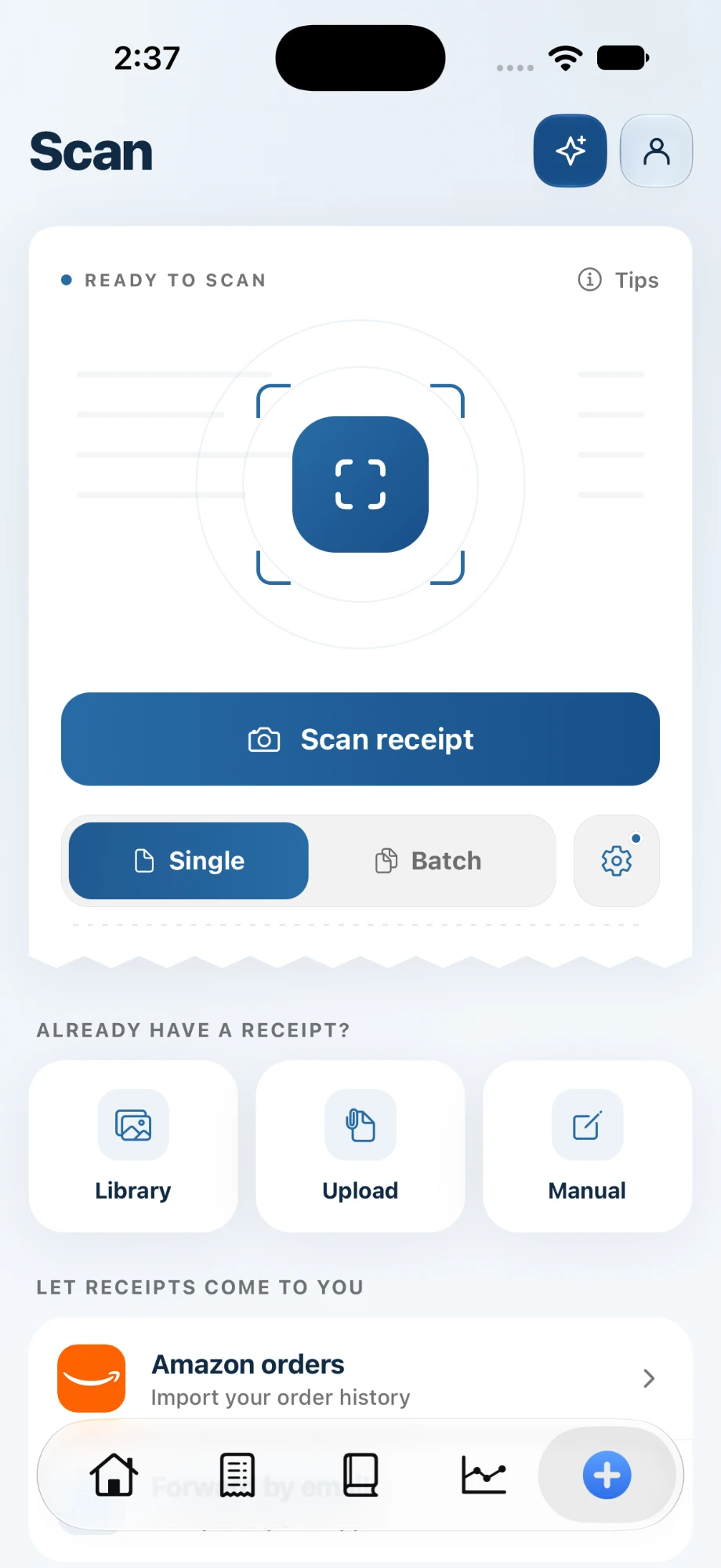
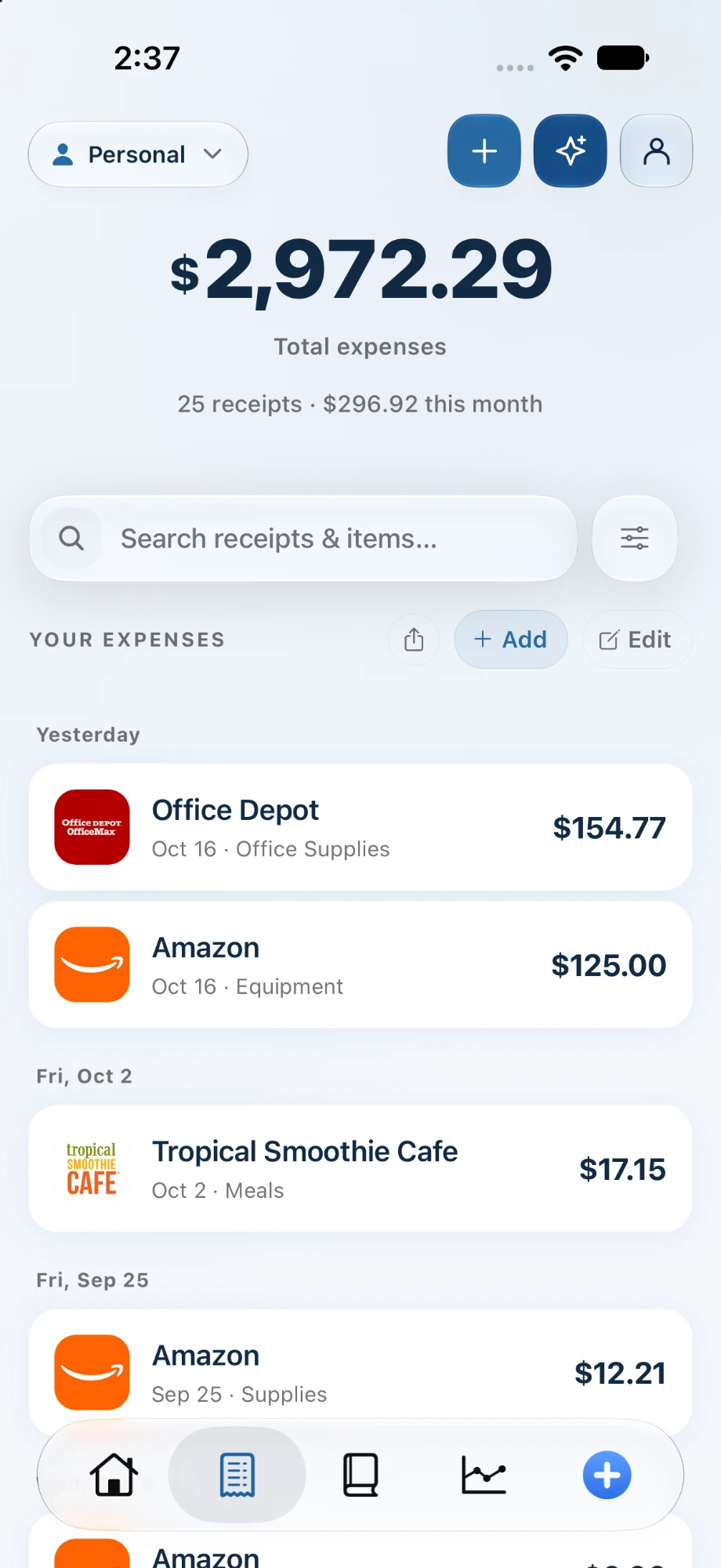
Photograph a paper receipt, forward an emailed one, or import your Amazon orders. spentr reads the merchant, date, total, and tax, files the expense to a category, and keeps the image with it.
Available on Free and up
How it works
Capture it
Scan with the camera, pick a photo from your library, upload a file, or forward the email to receipts@spentr.app.
spentr reads it
The merchant, date, total, and tax are read for you, and the expense is filed to a category.
Find it later
Search by store, item, or amount, and export the year for your tax preparer.
What’s included
10 AI scans a month, free Free
Photo scans and forwarded receipts share one monthly allowance on Free. Pro and Business are unlimited.
Batch scanning Pro
Lay out a stack of receipts and scan them in one pass.
Line items Pro
Each line on the receipt becomes its own item, so you can separate business from personal purchases.
Amazon order import Pro
Choose a year, sign in to Amazon, and keep the orders you want, with invoice PDFs where available. You review every order before it’s added.
Email forwarding Free
Forward any receipt email to receipts@spentr.app, or set up a rule in Gmail, Outlook, or iCloud.
Schedule C categories Business
File each expense under its Schedule C line for a clean tax report.
Plan tags show the lowest plan that includes each item. Compare plans.
Frequently asked questions
Are photographed receipts accepted by the IRS?
Yes, when the image is complete, legible, and retrievable. spentr keeps the image with the expense. Our digital receipts guide explains the rules.
Can I scan receipts on the web?
Scanning with the camera happens in the iPhone app. On the web you can add expenses, upload receipt files, and forward receipts by email.
What happens when I run out of free scans?
You can keep adding expenses by hand. The allowance is monthly, or Pro removes the limit.
Try it on your own receipts.
Free to start, with 10 AI scans a month. No card required.